
Who needs a minecraft server? You do! On Azure!
Yes, we had our own minecraft server in-house a couple years ago. My wife and I enjoyed playing minecraft with our son and his friends on it!
When that PC died, minecraft was neglected. I decided we should do something different than a pc box burning electricity in our house.
Many gallery images of virtual machines are in Azure, ready for fast deployment.
In this case, I picked the Minecraft server.
It is Ubuntu based, takes 1 core and 1.5 gigs of RAM.
As a long term Windows guy, I had to dust off my old school unix and linux skills for administering this.
However, I must say, it runs well, and costs very little per month!
Sign up for Azure or use your existing subscription.
Here is the link for the Minecraft server, and description.
Follow the directions. You will get a Linux server with Minecraft running. It will deploy, and your minecraft clients can connect on port 25565.
Be sure to edit the appropriate files as needed. Running the server in console mode can be done to add OPs. (If you need an explanation, click here)
I downloaded PuTTY to connect to it on port 22.
This is how that looks. Substitute in your own servername as declared when you deployed the server.
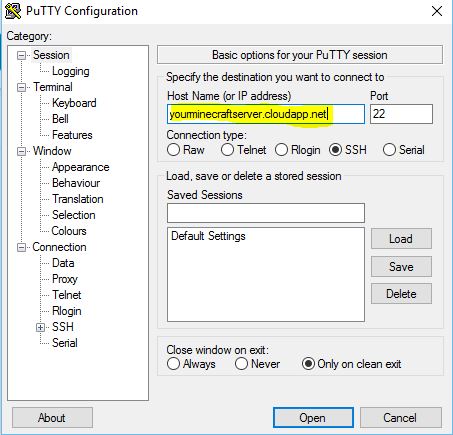
Note, the login you gave for the server does not run as root. You will need to use sudo to elevate yourself to root to do various commands.
I am still experimenting, and learning where everything is. I followed instructions here for how to update the server. Also, you can get a detailed build guide here. Note: This is not straightforward if you have not done Linux before.
I hope this helps you enjoy Minecraft, and perhaps start getting into Linux on Azure!


 George Walters
You must be logged in to post a comment.